PowerShell Set Proxy: 5 Ways to Configure a Proxy Server

To set a proxy in PowerShell, add -Proxy http://host:port to Invoke-WebRequest for one request, or assign $env:HTTPS_PROXY to send every web request of the current session through the same endpoint. For a system-wide proxy, use netsh winhttp or a registry key under HKCU.
Each method below covers one scope: a single command, a session or profile in version 7, a version 5.1 session, Windows services that use WinHTTP, and the Windows proxy of the signed-in account. Examples use the placeholder 203.0.113.10:8080; replace it with your host, port, login and password.
Set a Proxy for One Command with the -Proxy Parameter
The -Proxy parameter of Invoke-WebRequest and Invoke-RestMethod routes a single request through a remote server and leaves the rest of the proxy configuration untouched in versions 5.1 and 7.
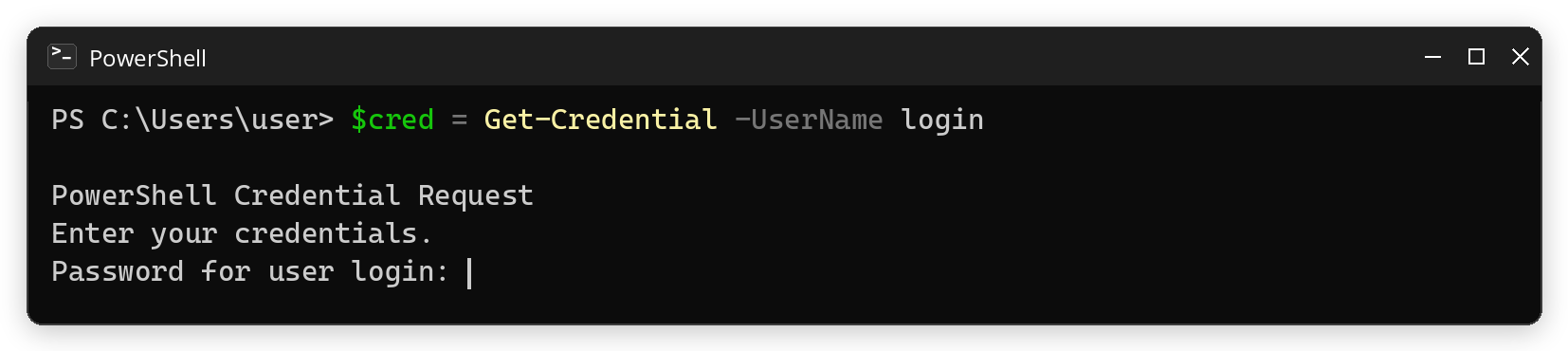
Step 1. Save the login. In the console, run $cred = Get-Credential -UserName login, replacing login with the user name your provider issued. A prompt asks for the password and stores both values in $cred as a PSCredential object, which keeps the password in a SecureString for better security.
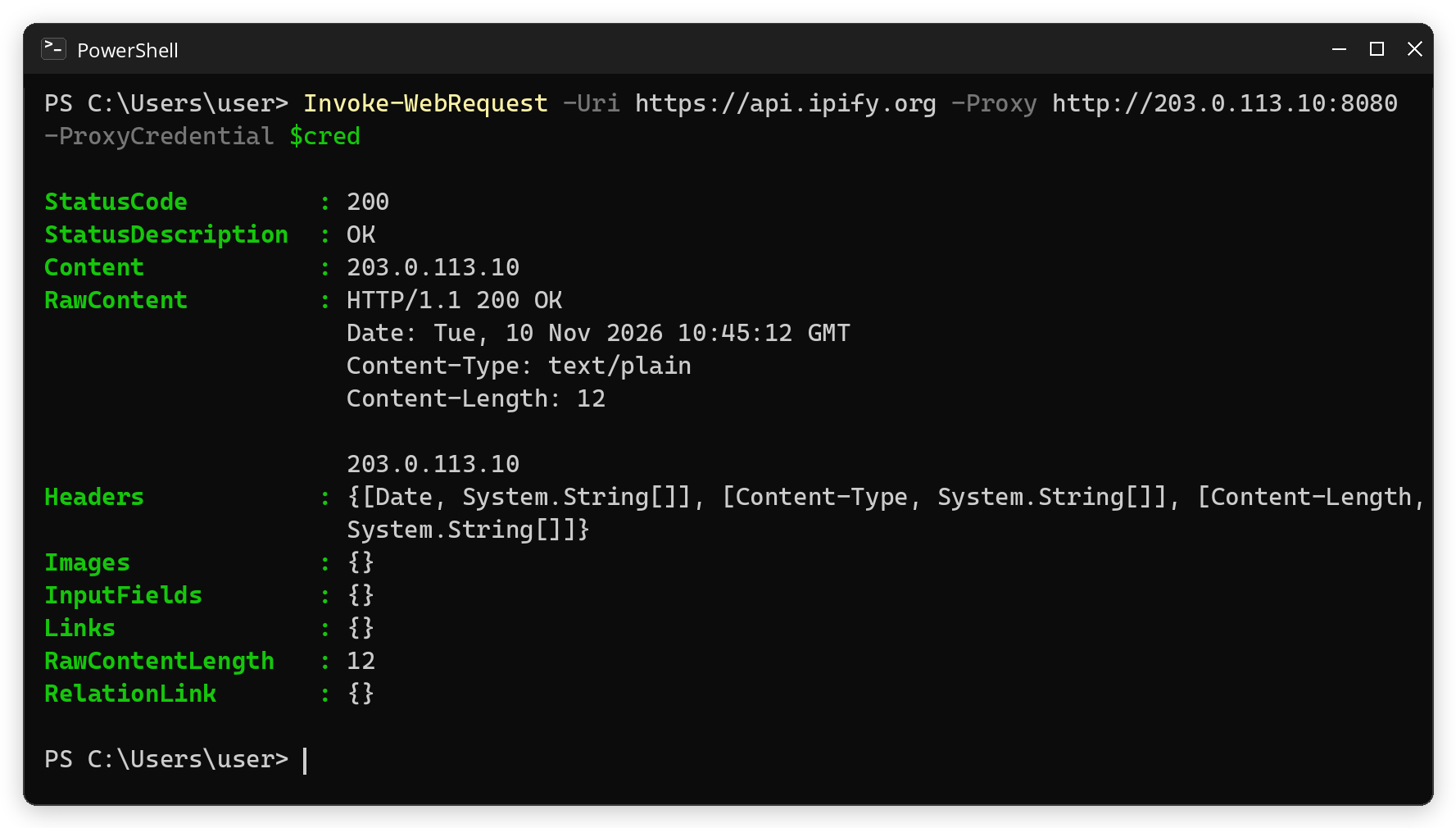
Step 2. Send the request. Run the command below with the port your provider issued; HTTP proxies take the http://host:port format. The response shows the exit IP of the gateway instead of your own address.
Invoke-WebRequest -Uri https://api.ipify.org -Proxy http://203.0.113.10:8080 -ProxyCredential $cred
Step 3. Authenticate with your Windows account. If your corporate network uses a gateway that accepts domain logins, replace -ProxyCredential $cred with -ProxyUseDefaultCredentials. The two parameters can't be combined in one command.
Step 4. Skip the configured proxy temporarily. Add -NoProxy (available since version 6.0) to send one request directly, even when environment variables point to a gateway.
Need a working endpoint for these commands? Datacenter proxies from Proxys.io arrive with an IP, HTTP(S) and SOCKS5 ports, a login and a password, ready to paste into -Proxy and -ProxyCredential.
Configure a Session Proxy with HTTP_PROXY and HTTPS_PROXY in PowerShell 7
Starting with version 7.0, Invoke-WebRequest and Invoke-RestMethod read the HTTP_PROXY, HTTPS_PROXY, ALL_PROXY and NO_PROXY environment variables, so one assignment covers every request in the session.
Step 1. Assign the variables. Run the two lines below. The login and password inside the URL authenticate the session, and the values last until you close the window. If both protocols go through one address, ALL_PROXY alone covers both protocols.
$env:HTTP_PROXY = "http://login:pass@203.0.113.10:8080"
$env:HTTPS_PROXY = "http://login:pass@203.0.113.10:8080"
Step 2. Exclude specific domains. Run $env:NO_PROXY = "localhost,.corp.example.com". Separate entries with commas: asterisks aren't supported, and a leading dot matches every subdomain.
Step 3. Switch to SOCKS5 if needed. The variables also accept a socks5://login:pass@host:port address, because .NET reads http, https, socks4, socks4a and socks5 URLs from them. This lets SOCKS5 proxies work without extra tools.
Step 4. Keep the setting for new sessions. Run the command below. Windows writes the value to HKEY_CURRENT_USER\Environment, and every console you open afterwards picks it up; to update the address, run the command again with the new value.
[Environment]::SetEnvironmentVariable('HTTPS_PROXY', 'http://login:pass@203.0.113.10:8080', 'User')
Step 5. Remove the variables. Run $env:HTTPS_PROXY = $null and $env:HTTP_PROXY = $null to clear the session. To delete the saved value, repeat Step 4 with $null in place of the address.
Running scrapers that a site may block after repeated requests? Residential proxies from Proxys.io route traffic through home ISP addresses in 195 countries, rotate the IP every 2 to 60 minutes and are billed per GB.
Set a Default Proxy in Windows PowerShell 5.1 with DefaultWebProxy
In version 5.1, the [System.Net.WebRequest]::DefaultWebProxy property defines one gateway for all requests in the session; by default, it holds the Internet Options proxy configuration of the signed-in account.
Step 1. Create the object. Run the line below. The second argument, $true, sends requests to local addresses directly.
$webProxy = New-Object System.Net.WebProxy('http://203.0.113.10:8080', $true)
Step 2. Add credentials. If the server asks for a login, run $webProxy.Credentials = New-Object System.Net.NetworkCredential('login', 'pass'). To avoid typing the password in plain text, assign (Get-Credential).GetNetworkCredential() instead; for a domain account, assign [System.Net.CredentialCache]::DefaultNetworkCredentials.
Step 3. Apply it. Run [System.Net.WebRequest]::DefaultWebProxy = $webProxy. From this point, Invoke-WebRequest, Invoke-RestMethod and WebClient calls in the window go through the gateway.
Step 4. Check the route. Run [System.Net.WebRequest]::DefaultWebProxy.GetProxy('https://example.com'). The output returns the gateway address; an empty result or the destination itself means the request goes direct.
Step 5. Restore or clear it. Assign [System.Net.WebRequest]::GetSystemWebProxy() to return to the Windows settings, or assign $null to send requests directly.
In version 7, the matching option is [System.Net.Http.HttpClient]::DefaultProxy, which accepts the same object but rejects $null.
Configure the WinHTTP Proxy for Windows Services with netsh
If you need to configure the proxy for Windows services and any application that uses the WinHTTP API to connect to the internet, use the netsh winhttp context. These settings are separate from Internet Options and can't be changed in Control Panel.
Step 1. Open an elevated console. Right-click the Windows PowerShell shortcut, select Run as administrator and confirm the prompt. The title bar of the new window starts with Administrator:; WinHTTP keeps its proxy configuration under HKEY_LOCAL_MACHINE.

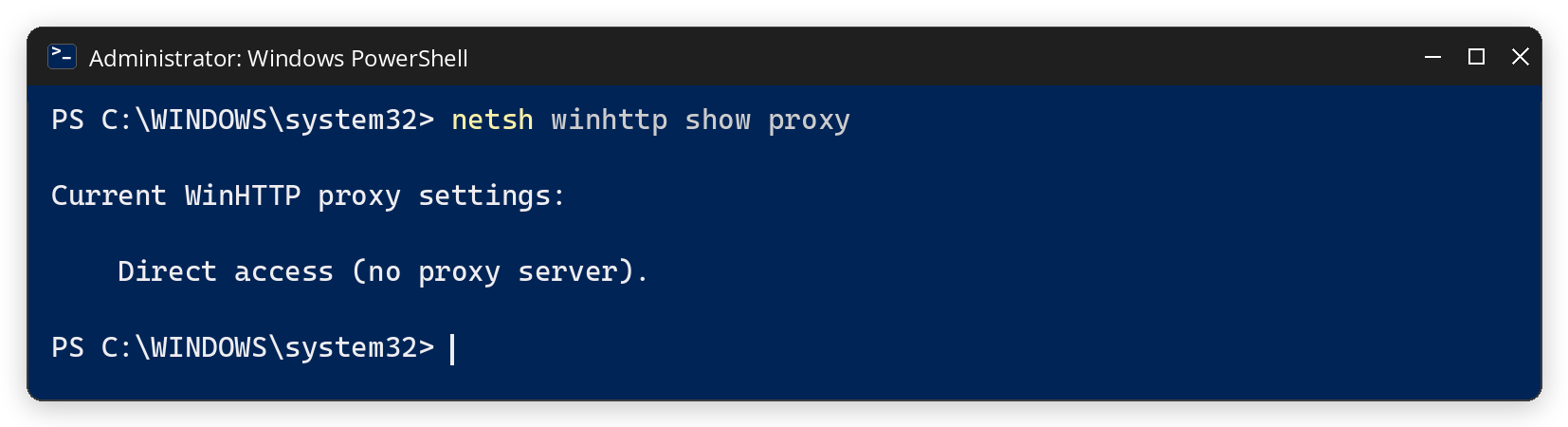
Step 2. Check the current proxy. Run netsh winhttp show proxy. The output shows the stored information: direct access or the configured server with its bypass list.
Step 3. Apply the gateway. Run the command below. <local> skips short host names, and semicolons separate bypass entries.
netsh winhttp set proxy proxy-server="http=203.0.113.10:8080;https=203.0.113.10:8080" bypass-list="<local>;*.example.com"
Microsoft marks this syntax as legacy: "set proxy is deprecated. Use set advproxy instead."
Step 4. Use advproxy on newer builds. Run netsh winhttp set ?; if advproxy appears, save the settings to a JSON file and apply it. AutoDetect=$false turns off detecting settings automatically, and SOCKS5 isn't supported here.
@{Proxy='203.0.113.10:8080'; ProxyBypass='<local>'; AutoconfigUrl=''; AutoDetect=$false} | ConvertTo-Json | Set-Content proxy.json
netsh winhttp set advproxy setting-scope=machine settings-file=proxy.json
Step 5. Import or reset. netsh winhttp import proxy source=ie copies the Internet Options settings into this store, and netsh winhttp reset proxy returns it to direct access.
Turn On the Windows Proxy via the Registry (HKCU)
The Windows connection setting of the signed-in account lives in a registry key under HKCU; version 5.1 reads it out of the box, and version 7 falls back to it on Windows when no environment variables are set.
Step 1. Store the key path. Run $reg = 'HKCU:\Software\Microsoft\Windows\CurrentVersion\Internet Settings'.
Step 2. Enable the proxy and enter the address. Run both lines. ProxyEnable with value 1 turns on the manual setting, and ProxyServer holds the host and port.
Set-ItemProperty -Path $reg -Name ProxyEnable -Value 1
Set-ItemProperty -Path $reg -Name ProxyServer -Value '203.0.113.10:8080'
Step 3. Add exceptions. Run Set-ItemProperty -Path $reg -Name ProxyOverride -Value '<local>;*.example.com' to send intranet hosts and one domain directly.
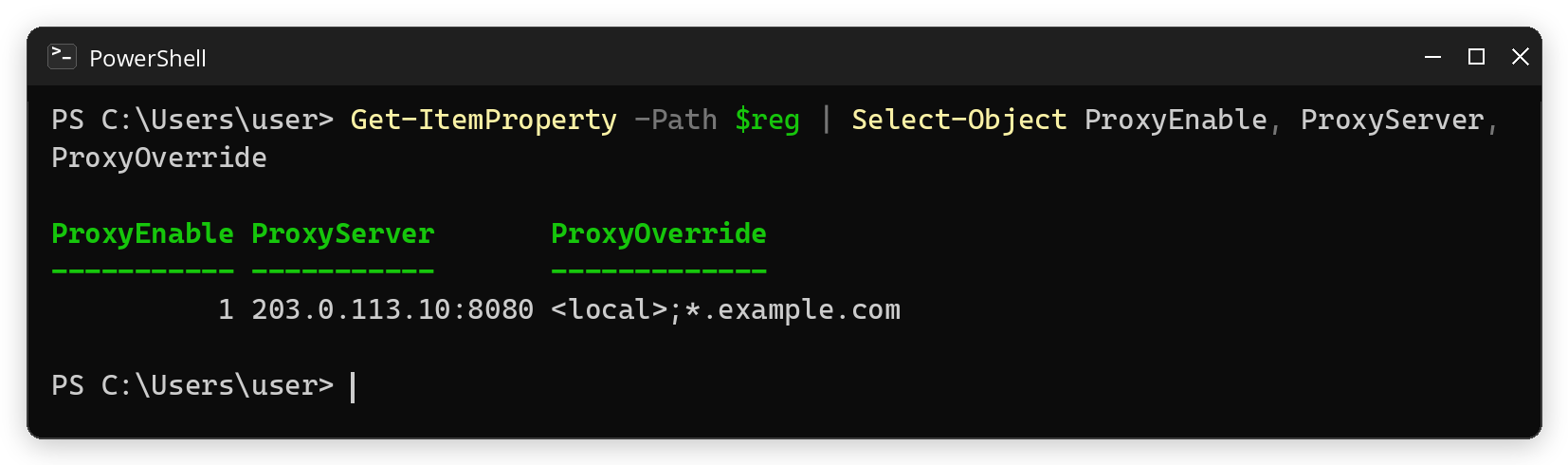
Step 4. Verify and reopen. Run Get-ItemProperty -Path $reg | Select-Object ProxyEnable, ProxyServer, ProxyOverride. The output lists the new values; open a new console afterwards, because a running session keeps the proxy settings it detected at startup.
Step 5. Disable the proxy. Run Set-ItemProperty -Path $reg -Name ProxyEnable -Value 0. Windows stops using the address, and the saved value stays for the next time you enable it.
FAQ
How do I check which proxy a session uses?
Run Get-ChildItem Env:*PROXY* to show the variables. In version 7, [System.Net.Http.HttpClient]::DefaultProxy.IsBypassed('https://example.com') returns True when that website skips the gateway.
How do I troubleshoot a 407 Proxy Authentication Required issue?
A 407 status means the server rejected the request: endpoints that require authentication answer this way when credentials are missing or wrong. Recheck the login and password or allow your public IP in the provider's dashboard, then test the address in a free proxy checker.
Does netsh winhttp change what Invoke-WebRequest uses?
No. The cmdlets read environment variables or the Windows setting of the signed-in account, while WinHTTP keeps a separate machine-level configuration for services.
How do I apply -Proxy to every call without editing scripts?
Run $PSDefaultParameterValues['Invoke-WebRequest:Proxy'] = 'http://203.0.113.10:8080' once per session. Every later Invoke-WebRequest call uses that address unless the command passes its own value.
How do I switch between direct and proxied mode with one command?
Add a function for each mode to your $PROFILE script, for example function Set-ProxyOn { $env:HTTPS_PROXY = 'http://203.0.113.10:8080' } and function Set-ProxyOff { $env:HTTPS_PROXY = $null }. On Windows, the execution policy must be at least RemoteSigned for the profile to load.
Which approach works in both version 5.1 and version 7?
The -Proxy parameter and the HKCU registry setting work in both. The HTTPS_PROXY variables apply to version 7 and later, while DefaultWebProxy affects the cmdlets only in version 5.1.
How do I use the same settings in a browser or another app?
Each program has its own connection settings, so you enter the address there manually. The Proxys.io blog keeps proxy setup guides for individual programs.